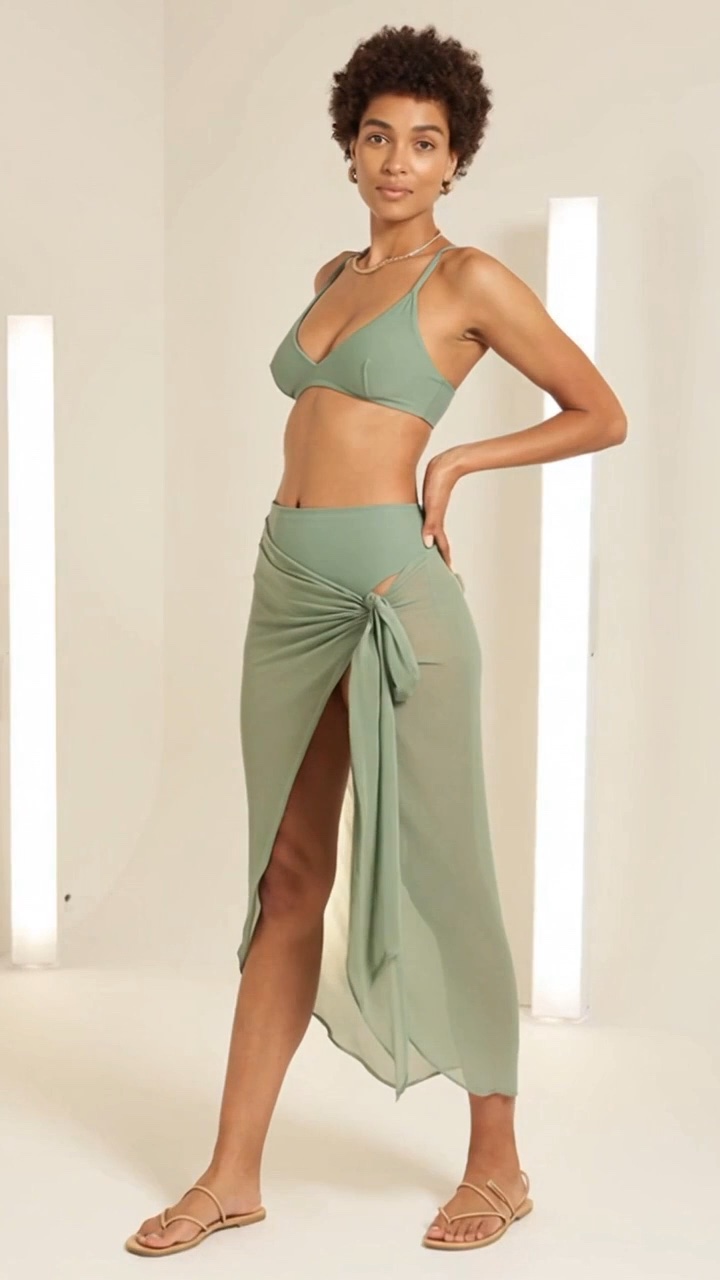
A square video has equal width and height. Plan the important action inside that square from the beginning, leave space around the subject, and inspect the entire clip after cropping. Matching the canvas does not automatically guarantee good framing.
Choose the composition before the export
A square frame can show a full-body view or a closer outfit detail, but it rarely does both equally well. Choose which information matters. For a complete styling comparison, leave enough distance to include the whole outfit. For a fabric or color story, a restrained medium view may be clearer.
Keep the viewpoint neutral and the model clearly adult and fictional. Position the subject near the center if the clip will be cropped from a wider source. Leave room for normal posture changes rather than placing hands or accessories against the edges.
Understand what a square crop removes
Cropping changes the visible composition; it does not squeeze the original picture. A 1280 by 720 landscape clip can produce a 720 by 720 square crop by removing 560 pixels of total width. A centered crop removes 280 pixels from each side. Anything important in those strips will disappear.
For a portrait source, a square crop instead removes part of the top and bottom. This can cut off the head or feet even when the original portrait looks well composed. If the full outfit must remain visible, reframe the source or fit it within a square canvas instead of forcing a tight crop.
Protect movement and interface space
An opening still can look perfect while the moving clip fails. Play the whole sequence and watch for an arm, hat, or bag leaving the square. A small turn can change the width of the silhouette. Keep the camera steady while learning the composition so you can distinguish subject movement from camera movement.
If your published design includes a before-image thumbnail, reserve a quiet corner for it. Avoid covering the garment or face. Captions and playback controls also occupy space, so inspect the clip in its actual player rather than relying exclusively on a full-screen preview.
Review color and detail at display size
After cropping, look at the video at the size it will occupy on the page. Check that the garment outline, face, and scene are readable. A fine print that looked attractive in the source can become distracting in a small card. The swimwear palette guide offers a simple way to reduce competing colors.
For a broader introduction to screen and print color workflows, see Logomakerr’s older explanation of RGB and CMYK color modes. A video is a screen asset; a still prepared for a printed campaign needs a separate production review. Do not treat one export as a finished file for every destination.
Make a final five-second export check
Confirm equal width and height in the exported file’s properties, then confirm its duration. A page that displays a video in a square box has not necessarily changed the underlying file. If you need a reusable square deliverable, the exported video itself must use equal dimensions.
Watch the first frame, the transition, and the ending at normal speed. Make sure the last frame holds long enough to read and that playback does not end halfway through a motion. Use the short fashion storyboard to plan that ending. Keep the untrimmed source as well as the final square version so later changes do not require rebuilding everything.
You can study the fictional adult examples in the Undresss.ai demo gallery. The existing demos are pre-rendered, and their dimensions and durations vary from the five-second square concept described here. Custom generation is currently limited to a private owner preview.
People also ask
Frequently asked questions
What does 1:1 mean?
The width and height are equal, such as 720 by 720 pixels.
Can I stretch a portrait video into a square?
Stretching distorts the picture. Use a planned crop or fit the original within a square canvas.
Does a square player mean my downloaded video is square?
No. The player can crop its display without changing the video file’s actual dimensions.