The Undresss.ai generator gives you a workspace for choosing a model, describing motion, and creating a video from your source image. Use it when you want to direct a custom clip instead of starting with a preset scene. Review the available settings and displayed credit cost for your selected model before generating.
A workspace for your own idea
A portrait can become a quiet camera push-in, a fashion pose, or a short moment of movement. The useful starting point is a clear idea of what should happen next. The Undresss.ai generator brings the source upload, motion description and model controls together so you can build that idea in one place.
A preset scene gives you an established direction. This workspace is useful when you already have a different action or camera movement in mind. Start small: one subject, one action, and one clear camera direction make the result easier to evaluate.
Choose a model for the clip you want
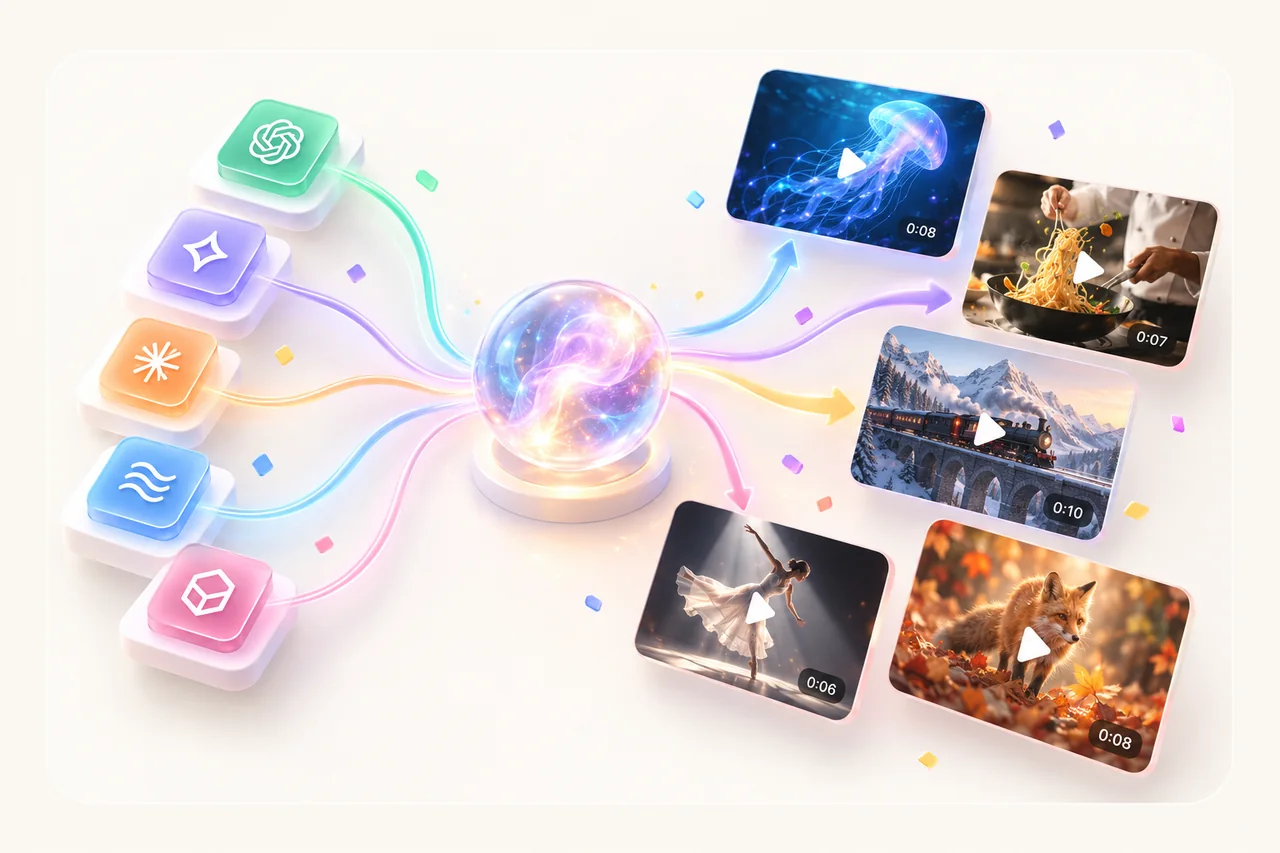
The model selector includes options from Seedance, Grok, Veo and Kling. Each model has its own supported durations and formats. Changing the model can change the available controls and the credit estimate, so review the form again before submitting.
Multi-Model lets you select more than one model to compare their results. Keep the source and creative direction consistent if you want a useful comparison. Each selected model creates its own request; the displayed total reflects the selection. A single-model test is a practical starting point when you are still refining an idea.
Give the photo one clear action
Describe an observable movement: a head turn, a small step, a wave, or a gentle change in expression. Add a camera direction only if it matters to the shot. Asking for several unrelated actions in a short clip makes it harder to judge which part of the instruction worked.
For a simple portrait test, try a direction such as: “The subject turns slightly toward the camera and smiles. A gentle push-in keeps the face in focus.” This gives you specific details to inspect in the result: the turn, the expression, and the camera movement.
Use a clear source image with enough room for the action. A tight crop may leave too little space for hands or a change in pose. Use your own images or images you have permission to transform and share.
Create your first custom video
Begin with a format that suits where you will use the video. Portrait framing can suit a vertical post, while a wider frame can give a landscape or full-body movement more room. Only the formats supported by your current model are available.
Open the generator and create your next clip. The settings shown in the form are the best guide to the choices and cost available for your request.
- Open the generator and choose Image for a photo-based clip.
- Upload a clear source image and enter your motion description.
- Choose one model, then review its available duration and aspect-ratio settings.
- Check the credit total and account requirements before selecting Generate.
- Watch the complete result, then open My Creations to review your output.
What the “NSFW checker off” page name means
If you arrived by searching for an NSFW checker off generator, distinguish the page address from the behavior of the selected model. This address opens the image-to-video workspace, which also displays an NSFW checker control. The address alone is not confirmation that checks are off, and it is not a promise of unrestricted generation.
External model providers can apply their own content rules and reject requests. This guide describes the workspace’s creative controls; it does not claim that a switch overrides provider policies. Review any response shown by the application before deciding on your next step.
Review motion before making another version
Watch the clip from beginning to end. Check whether the face stays consistent, hands move naturally, clothing holds its shape, and the background remains coherent. A convincing first frame does not tell you how the rest of the sequence will behave.
When you want to improve a result, change one creative variable at a time. Simplify the action, adjust the framing, or compare another model while keeping the other settings consistent. That makes each new version easier to learn from. For more on directing a short clip, read our five-second fashion video guide.
Prefer a ready-made starting point?
You can also browse the Scene Gallery to choose an established style and watch its preview. Our After Shower scene spotlight shows how a focused gesture can give a short clip its character.
For a custom direction, return to the AI video generator, bring one clear source image, and describe the movement you want to see.
People also ask
Frequently asked questions
How is the generator different from a scene page?
A scene page provides an established scene direction. The generator gives you model selection and a field for your own motion description.
Can I compare more than one model?
Yes. The workspace includes Multi-Model selection. Each selected model submits its own request, so review the total credit cost before generating.
Does this page guarantee unfiltered results?
No. A URL or interface setting does not guarantee provider acceptance. External providers can apply their own rules and return a rejection.
Does every model use the scene pricing table?
No. This generator calculates costs for the selected models and durations. Check the displayed amount before submitting instead of assuming the preset-scene rates apply.