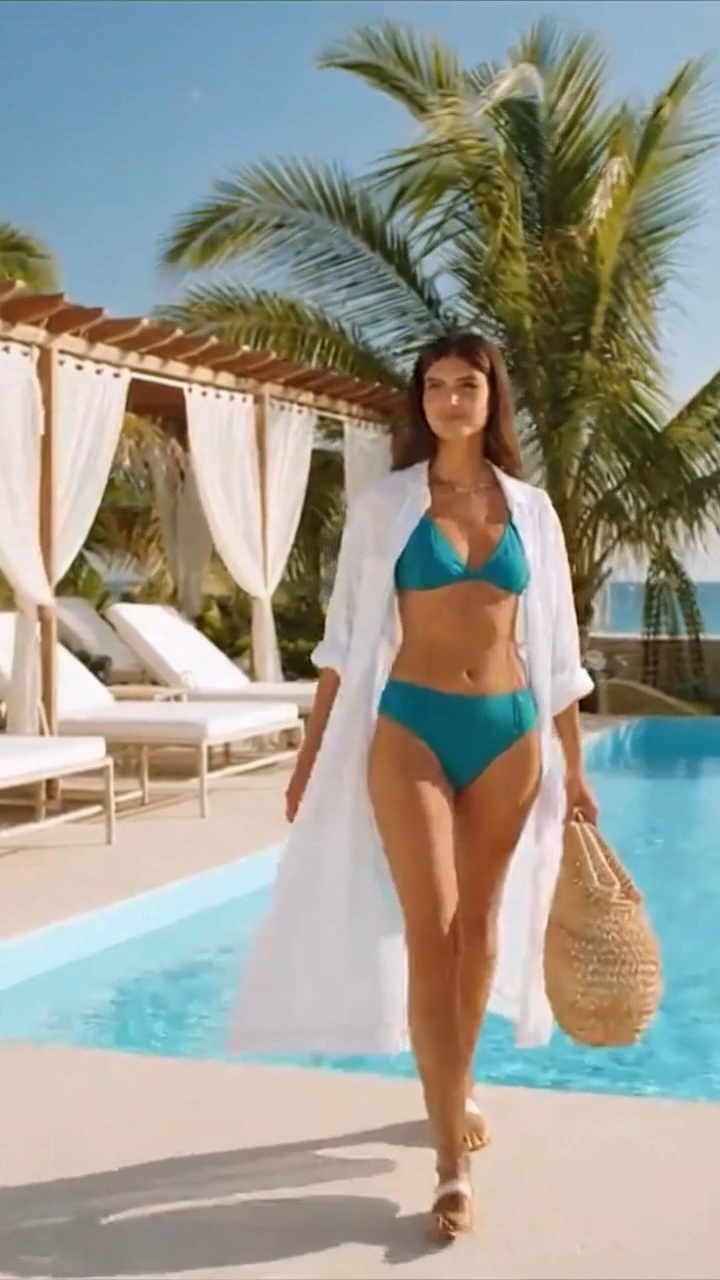
A useful five-second fashion clip has three beats: establish the first outfit, make one clean editing cut, then hold the final look. Keep the adult fictional model, camera position, and background consistent so the outfit is the clearest change.
Start with one change viewers can recognize
A short video works best when its purpose fits in one sentence. For example: a fictional adult model stands beside a resort cabana in a summer outfit, then an editing cut reveals an opaque swimwear look in the same setting. Avoid adding a new location, a camera orbit, multiple accessories, and changing weather to the same brief. Each extra event competes with the clothing comparison.
Choose the final outfit before the opening shot. Decide on the garment silhouette, its main color, and the background that will help it remain visible. Keep the scene ordinary and the pose neutral. The goal is a readable fashion edit, with attention on styling and composition.
Divide five seconds into three beats
Use the first second and a half to establish the person and setting. Place the transition around the middle of the clip, then reserve roughly the last two seconds for the final outfit. These timings are a starting point rather than a rigid formula: a busy opening may need simplifying instead of more time.
Write the sequence as a tiny shot list: opening outfit, clean cut, final outfit hold. Describe the subject as a fictional adult and specify opaque clothing. Keep the camera at eye level. A straight cut avoids asking the animation to depict physical clothing removal and makes it easier to compare the two styled looks.
Write a concrete production brief
Try this brief: “A fictional adult fashion model around 30 stands naturally in a quiet garden, framed from head to knees. Soft daylight and a fixed eye-level camera. Begin in a blue summer outfit. Make one clean editing cut to an opaque navy swimsuit while preserving the setting and pose. Hold the final look. No text or logos.” Adapt the outfit and setting to your concept.
Use a small set of colors that stay distinct after the cut. The older Logomakerr guide to colors that go together offers useful starting combinations. Apply a combination to the clothing and scenery, then check it at the actual viewing size.
Review continuity before publishing
Watch once at normal speed, then pause just before and after the transition. Check that the face, hands, horizon, and background objects remain coherent. Inspect the final frame for changing straps, disappearing accessories, or a garment that shifts shape. If a detail distracts from the outfit, simplify the brief before making another version.
For a square destination, plan the crop before rendering. Our square video framing guide explains how to protect the subject and avoid cutting off important details. Label fictional AI imagery clearly when you publish it so the clip is not mistaken for documentary footage.
Use the current demos as examples
The Undresss.ai video gallery contains published examples with fictional adult models. They are pre-rendered demonstrations. Five-second custom generation is available in a private owner preview; public generation and checkout are not available.
Keep your storyboard, original render, and final export together. A simple version name such as garden-navy-square-v1 makes it easier to find the right file when comparing edits. Save a clean copy before adding captions or making platform-specific crops.
People also ask
Frequently asked questions
Do I need several outfit changes?
No. One change usually gives a five-second clip a clearer structure.
Should the clothes physically come off?
Use a clean editing cut between styled outfits. This guide describes a non-sexual fashion edit.
Can I generate a custom video here now?
The public gallery shows pre-rendered demos. Five-second custom generation is currently limited to a private owner preview.