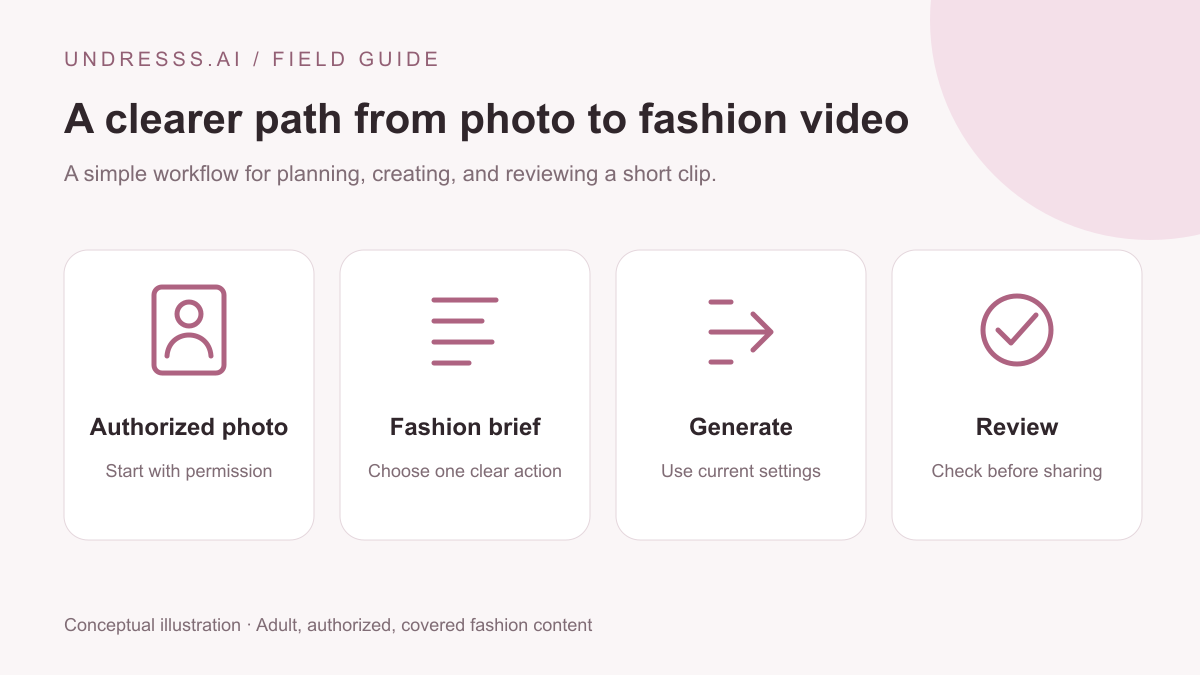
For a consent-based fashion workflow, undress AI should be treated as a creative image-to-video tool, not a way to discover hidden physical details. Start with an authorized adult source, keep the fashion result covered, describe a simple action, and review the complete generated clip before sharing.
What people mean when they search for undress AI
Undress AI is a broad search phrase rather than a precise technical specification. People use it to find clothing transformations, virtual fashion experiments, image editing, and sometimes tools that claim to reveal what is beneath clothing. Those are different intentions, and a useful guide should make the distinction clear. An image generator creates a new interpretation of pixels; it does not recover a hidden photograph or establish what a person actually looks like underneath an outfit. Treat any generated detail as invented content, not evidence about the subject.
This guide focuses on a narrower creative task: making a short, non-explicit fashion video from an authorized adult image. The subject remains covered, the scene has a clear movement, and the result is presented as AI-generated. That approach gives you something concrete to plan and evaluate. Instead of judging an output by how dramatic its transformation looks, assess whether the face, clothing, movement, and setting remain coherent across the clip.
Choose a source you have permission to transform
Start with a photo of yourself, an adult model who has agreed to this specific use, or a fictional adult character you are entitled to use. Permission to view a photograph is not the same as permission to make a transformed video or publish it. Agree on the intended styling, audience, and sharing destination before you start. If you are working with a model or collaborator, explain that the output is synthetic and may change details unpredictably. Give them a chance to review the finished result before sharing.
Avoid uploading another person’s social media photo simply because it is publicly accessible. Also avoid images where the subject’s adulthood or consent is unclear. You do not need to include names, identity documents, private backgrounds, or unrelated people to make a useful fashion experiment. Review the service’s Content and Consent Policy and Privacy Policy before uploading. These pages explain the service’s rules; this article does not replace them.
Prepare a photo that gives the animation room
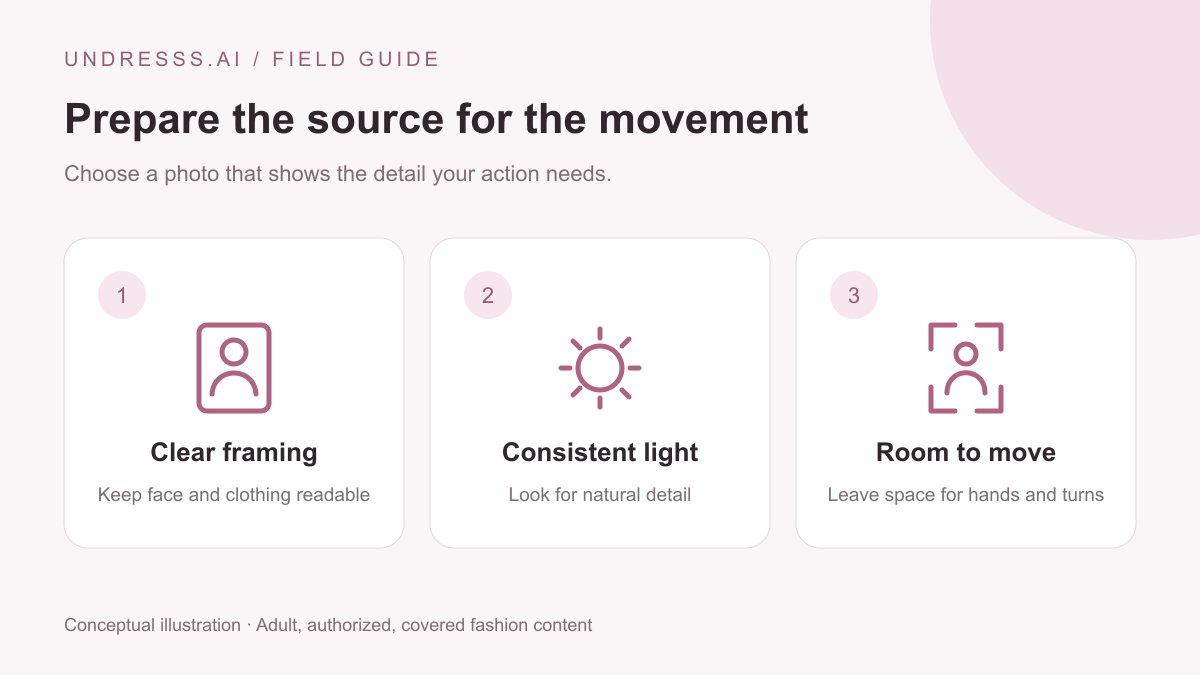
A clear source makes it easier to tell whether a result has preserved the important visual details. Choose a photo with a readable face, visible clothing edges, and lighting that is reasonably consistent across the subject. Leave room around the shoulders and hands if your planned movement needs them. A tightly cropped portrait is a poor starting point for a full-body step or turn because the missing parts must be invented. Match the requested action to what the camera already shows.
Keep a copy of the original before editing. Check the photo at normal viewing size, then zoom in briefly to look for blur, repeated compression, and distracting objects near the face. A larger file is not automatically a better source if its detail is already soft. Use a supported image format and the upload limits shown by the current interface. Cropping, exposure correction, and a simpler background can be useful preparation, but excessive smoothing can remove the texture you want the video to preserve.
Plan one fashion action, not a whole film
A short clip needs an action that can begin and finish within its available time. One step, a modest turn, or a small adjustment to a ribbon is easier to evaluate than a list of unrelated movements. Describe where the subject begins, what changes, and how the clip should end. Keep the setting and camera stable unless a camera movement is essential to the idea. If you request a turn, a walking sequence, a wardrobe change, and a close-up together, the model has several competing instructions to resolve.
For a five-second concept, use the opening moment to establish the source, the middle to show the main motion, and the ending to settle into a readable pose. This is a planning framework rather than a guarantee of exact timing. A useful prompt might be: “The adult model makes one relaxed quarter-turn, then faces the camera with a soft smile. Keep the outfit fully worn, the lighting consistent, and the camera steady.” See the five-second fashion storyboard guide for a more detailed planning exercise.
Write an AI undress generator prompt around visible results
When evaluating an AI undress generator, look for a workflow that lets you describe the actual creative result clearly. For covered fashion content, specify the garment silhouette, material, color, and intended movement. “A navy swimwear look with opaque coverage and a gentle side turn” provides a more testable direction than a vague demand for a stunning transformation. Avoid contradicting yourself with instructions such as a fixed camera and a sweeping orbit in the same short shot.
Keep identity and scene continuity separate from the action. Your action sentence can describe a natural turn while a short continuity sentence asks to preserve the face, hairstyle, body proportions, lighting, and background. These requests guide generation; they do not guarantee an exact match. Review the result rather than assuming the prompt has been followed. If the output fails a provider’s content checks, use a genuinely different, allowed fashion concept or source. Repeatedly disguising the same rejected instruction is not a productive editing workflow.
Understand the current Undresss.ai settings
As of September 18, 2026, this site’s deployed new-video and extension paths use Seedance 1.5 Pro, Standard 480P, with audio disabled. The available duration choices are five or ten seconds. These are application settings, not a complete list of everything the underlying model may support. The KIE Seedance 1.5 Pro documentation describes its image inputs and first-and-last-frame controls. Always check the current generation form before making a plan around a setting, because product configurations can change.
New-video scenes currently show one photo upload. The optional second-photo feature is hidden while the application uses 1.5 Pro, so the visible workflow matches the intended single-image starting point. KIE’s documented two-image mode for this model uses first and last frame control; it is not an independent identity-reference mode. The application retains its reference-photo implementation for a possible future Mini rollout, but that is not a currently available upload option. Begin with one clear photo and a simple action, and check the interface again if the model changes.
Use extensions to add the next moment
An extension should describe what happens after the existing clip, rather than asking the system to remake the entire sequence. In the current workflow, the service extracts the previous video’s final frame and supplies it as the starting image for the next generation. This is image-based continuation. It does not send a moving one-second reference clip to 1.5 Pro, so the model has less direct information about the motion that led into that frame. A restrained next action can be easier to connect visually.
The editable action is the primary continuation direction. Whatever text currently appears in that field takes priority over the shared continuity instructions, and the previous scene’s prompt is not appended. Read the field before submitting, especially if you selected a preset and then edited its text. Watch the join after generation: the face, framing, garment, and direction of movement should remain understandable. If the original ends mid-turn, a continuation that abruptly starts a different action may still look disconnected.
Review texture, motion, and color before sharing
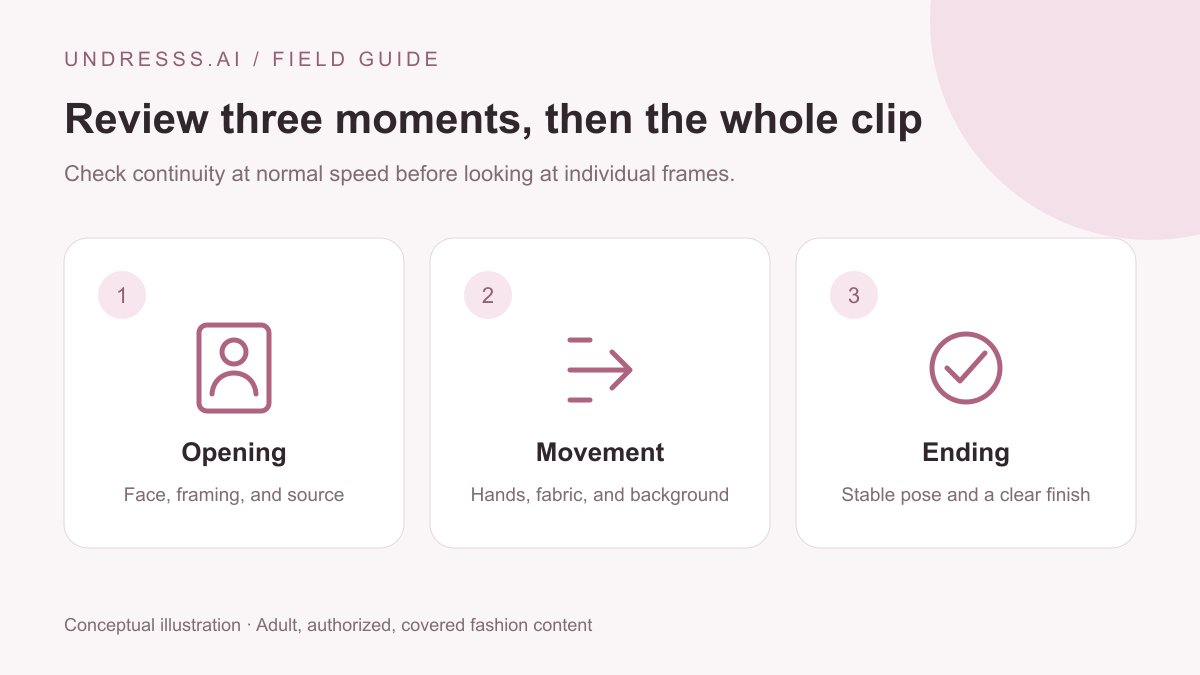
Watch the complete result at normal speed first. Then inspect the opening, the main movement, and the ending separately. Look for changing facial proportions, fingers merging into fabric, seams that slide, or background objects that shift without a reason. Skin highlights should fit the source lighting rather than appearing polished or wet when the original is matte. Hair and loose fabric should respond plausibly to the motion. A single attractive still does not establish that the whole video is consistent.
Color also affects whether an outfit reads clearly in a small player. Keep the garment distinct from the background without forcing an unnatural grade over the scene. Our swimwear color palette guide can help you plan a focused combination. For a broader explanation of screen and print differences, Logomakerr’s RGB and CMYK color guide provides background. Review the actual exported file on its intended screen instead of treating a cropped preview as the final deliverable.
Budget for experiments and distinguish free access from top-ups
An undress generator search often includes “free,” but a free preview and unlimited generation are different offers. The current Undresss.ai free entitlement is one five-second Standard 480P generation for a newly registered eligible account. Paid 480P new videos cost 15 credits for five seconds or 30 credits for ten seconds. Extensions are priced separately: an additional five seconds costs 36 credits, and an additional ten seconds costs 70 credits. Check the displayed amount before committing, especially when switching from a new video to an extension.
The current monthly plan is $20 and includes 500 credits per month. Additional credit packs are available to subscribed accounts. A remaining balance alone does not make a free account eligible to buy another pack. These figures describe the present application catalog, not a promise that pricing will never change; the pricing page is the place to check the available offer. Plan a small number of deliberate experiments, change one variable at a time, and keep notes about which source and action produced the most coherent result.
Publish an honest fashion result
Before sharing, confirm that the subject agrees to the actual finished video and its destination. Permission for a private experiment should not be assumed to include a public link or advertising use. Review the whole clip for unexpected exposed details, misleading changes, and recognizable background information. Keep the AI-generated context clear in the caption or presentation. A generated fashion clip is a creative interpretation, not documentation of something the person really wore or did.
The practical value of AI undress search tools depends on what you make with them and how you evaluate the output. Start with an authorized adult source, choose a covered fashion concept, describe one achievable action, and inspect the result carefully. Use the Undresss.ai creation page when you are ready to try the workflow, with the current settings and costs in view. A thoughtful source and a clear brief give you a better basis for iteration than chasing an exaggerated promise about what any generator can reveal.
People also ask
Frequently asked questions
Does an AI undress tool reveal what is actually under clothing?
No. Generated details are synthetic interpretations, not recovered evidence about a person’s body or original photograph.
Can I use a photo I found on social media?
Public visibility does not establish permission to transform or share someone’s image. Use your own authorized adult source or obtain permission for the specific use.
Can I upload a second photo in the current workflow?
New-video scenes currently accept one photo. The second-photo feature is hidden for the current 1.5 Pro configuration and retained for a possible future Mini rollout.
Do extensions use the previous video’s whole prompt?
The current workflow uses the final frame and the editable next-action text with shared continuity instructions. The previous scene prompt is not appended.